Play KGB online
The game runs locally in your browser. Click Play, then click the game area to give it focus. Not all games can be saved: only the files a game writes are kept, in this browser, and nothing is uploaded. A game that keeps its progress in memory starts over after a reload. The controls and common DOS shortcuts are explained below the player.
Checking your browser…
You might be interested
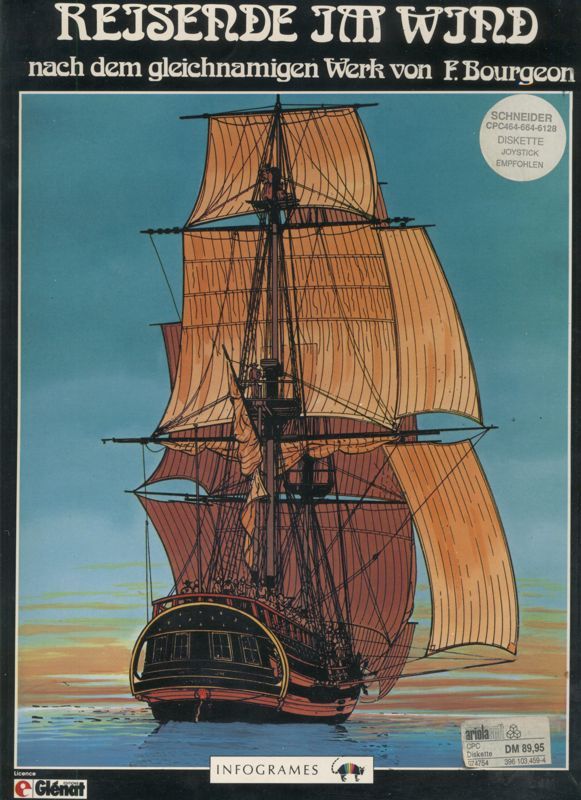
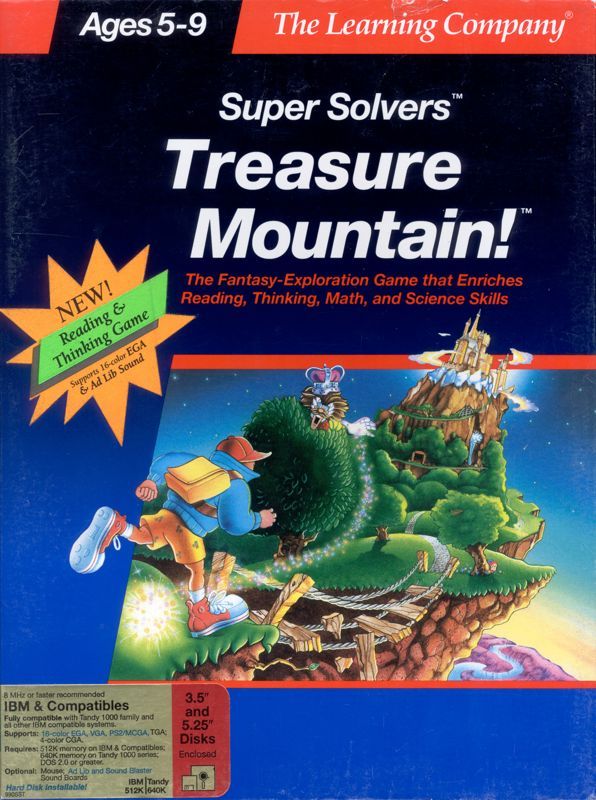
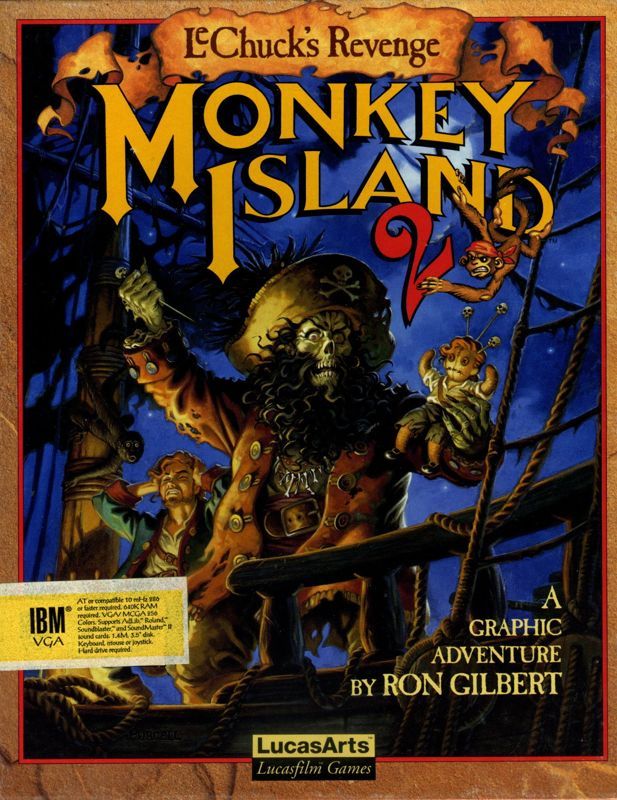
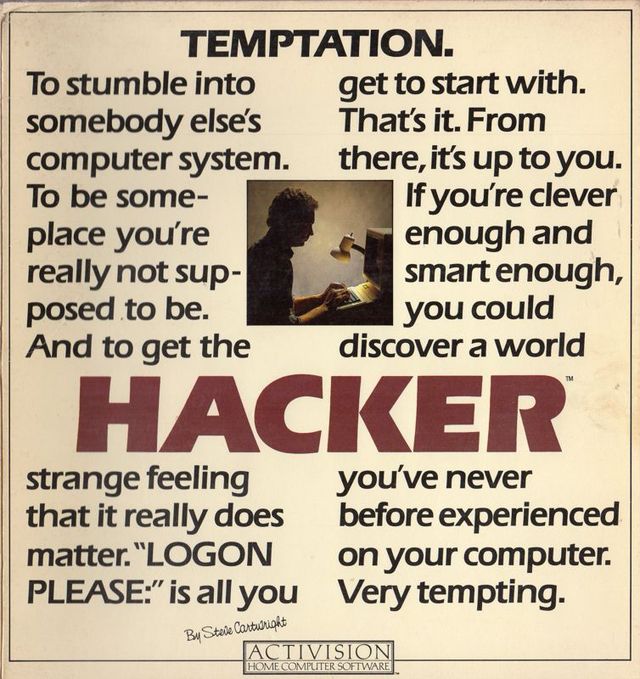



How to play
Every DOS game is different. These are the common controls and shortcuts that work in the player. Check the game's own readme or manual for its specific keys.
Important shortcuts
- Esc
- Release the mouse, go back, or open the game's pause menu.
- Enter/Space
- Confirm, select, or fire.
- ↑↓←→
- Move or navigate menus (WASD often works too).
- Tab
- Cycle through menu items in some games.
- F1
- Help or information in many games; other F-keys are game-specific.
- Ctrl+F11
- Decrease emulated CPU speed (DOSBox shortcut).
- Ctrl+F12
- Increase emulated CPU speed (DOSBox shortcut).
- Alt
- Alt+Tab and Ctrl+Alt+Del are available under js-dos Settings → Special keys.
Browser and OS shortcuts such as Ctrl+W, Ctrl+T, Ctrl+N and Alt+F4 cannot be reliably captured by the game. Avoid them while playing.
Start and focus
- Press Play game, then click the game area once. This gives the game keyboard focus and, for mouse games, captures the pointer.
- If the "Click to capture mouse" overlay stays visible, click the game area again.
- Press Esc to release the mouse. While the pointer is captured, mouse clicks belong to the game, so release it before using the toolbar outside the player.
Keyboard basics
- ↑ ↓ ← → or WASD: move or select.
- Enter or Space: confirm, select, fire.
- Esc: cancel, go back, or open the game's pause menu.
- Tab: move between menu items in some games.
- F1 is often help or information; F2–F12 are game-specific (save, load, options, map, and so on).
- Click the game area and type for text prompts. If the physical keyboard does not respond, open the js-dos sidebar and use the soft keyboard.
Mouse
- Left click activates or shoots in most mouse games; some games also use the right button.
- Click the game area to capture the mouse. The pointer is hidden while captured; press Esc to release it.
- Adjust sensitivity in the js-dos sidebar under Settings → Mouse sensitivity.
- Some games are keyboard-only or support a joystick; the mouse may do nothing in those games.
Player toolbar
The toolbar under the game is grouped by purpose:
- Game: Pause/Resume and Restart. Restart asks for confirmation first.
- View: Fullscreen.
- Speed: Slower, Faster and Default. The current CPU cycles are shown next to them; Default restores the value from the game bundle.
- Sound: volume slider.
- Save: Reset save. Ticking the confirmation checkbox is required before the save is deleted.
js-dos sidebar
The game engine has its own sidebar at the left edge of the game area. Click the thin bar to open it.
- Save: save the current game files.
- Keyboard: on-screen soft keyboard for text prompts.
- Fullscreen: fullscreen the game.
- TURBO: performance stats and CPU cycles. Choose Fast Forward or Frame Skip to reveal the manual Cycles field.
- Cycles / diagnostics: engine and timing information.
- Settings: mouse capture, sensitivity, aspect ratio, image rendering, theme, volume and special keys.
Saving and fullscreen
- Not all games can be saved: only the files a game writes are stored, locally in this browser (IndexedDB), not on the server. Pausing, leaving the page and the sidebar Save button save those changes, so a game that keeps its progress in memory starts over after a reload.
- Toolbar → Reset save → tick the confirmation checkbox deletes the local save for this game and starts fresh next time. Restart in the toolbar also asks for confirmation.
- Re-importing a new game bundle starts a new save slot for that bundle version.
- Use the Fullscreen button or the js-dos fullscreen button. Esc may exit fullscreen or release the mouse, depending on the browser.
- If the game does not start, use Try again. The player needs HTTPS (or localhost), WebAssembly, OPFS and a modern browser.
Game-specific controls are not listed here. If a game uses unusual keys, check its readme or manual, or use the js-dos soft keyboard.